Compress PNG Images Online for Free
Make PNG screenshots, logos and graphics much smaller while keeping transparent backgrounds. No sign up, and your files never leave your device.
- 100% PrivateImages never leave your device
- Fast & EasyWorks in seconds
- Free ForeverNo sign up required
Select Images
Drag and drop your images here, or click to browse files.
PNG • Up to 50 images, 50 MB each
Compression Settings
Similar colors are merged. Gradients and photos may show banding.
How to Compress PNG Images
- 1Upload your PNGsSelect or drag & drop PNG files.
- 2Pick a qualityLower quality uses fewer colors.
- 3Compress & downloadSave each image or all of them as a ZIP.
- Keeps TransparencyTransparent areas stay transparent.
- No Upload to ServerAll processing happens in your browser.
- Unlimited & FreeProcess as many images as you need.
Real Results
Our own files, processed with compresshive in Chrome 140. Enlarged details are cropped from each result. Your results will vary with the file and browser.
Example: a screenshot
A 1280 × 800 screenshot of our All Tools page, at three quality settings.
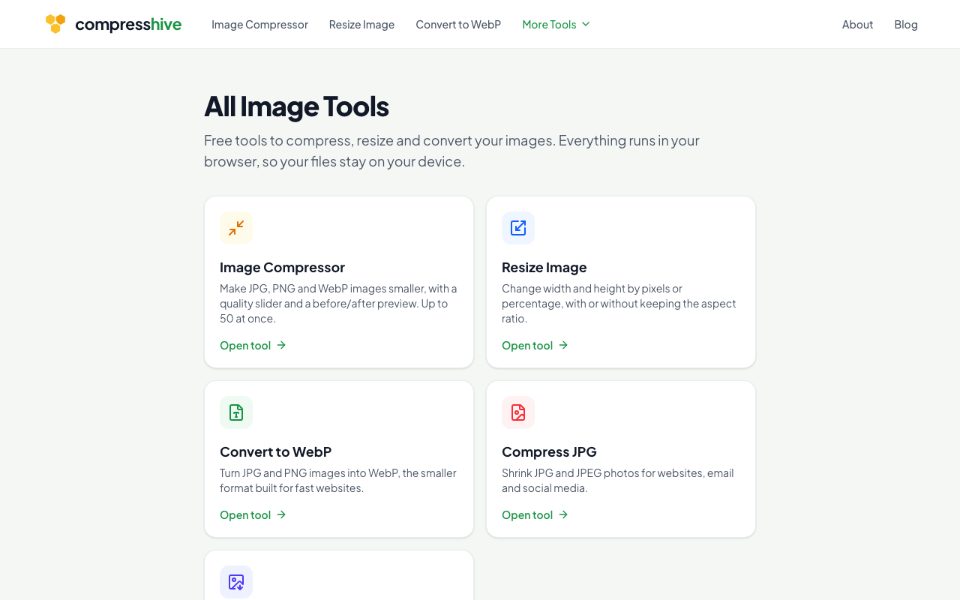
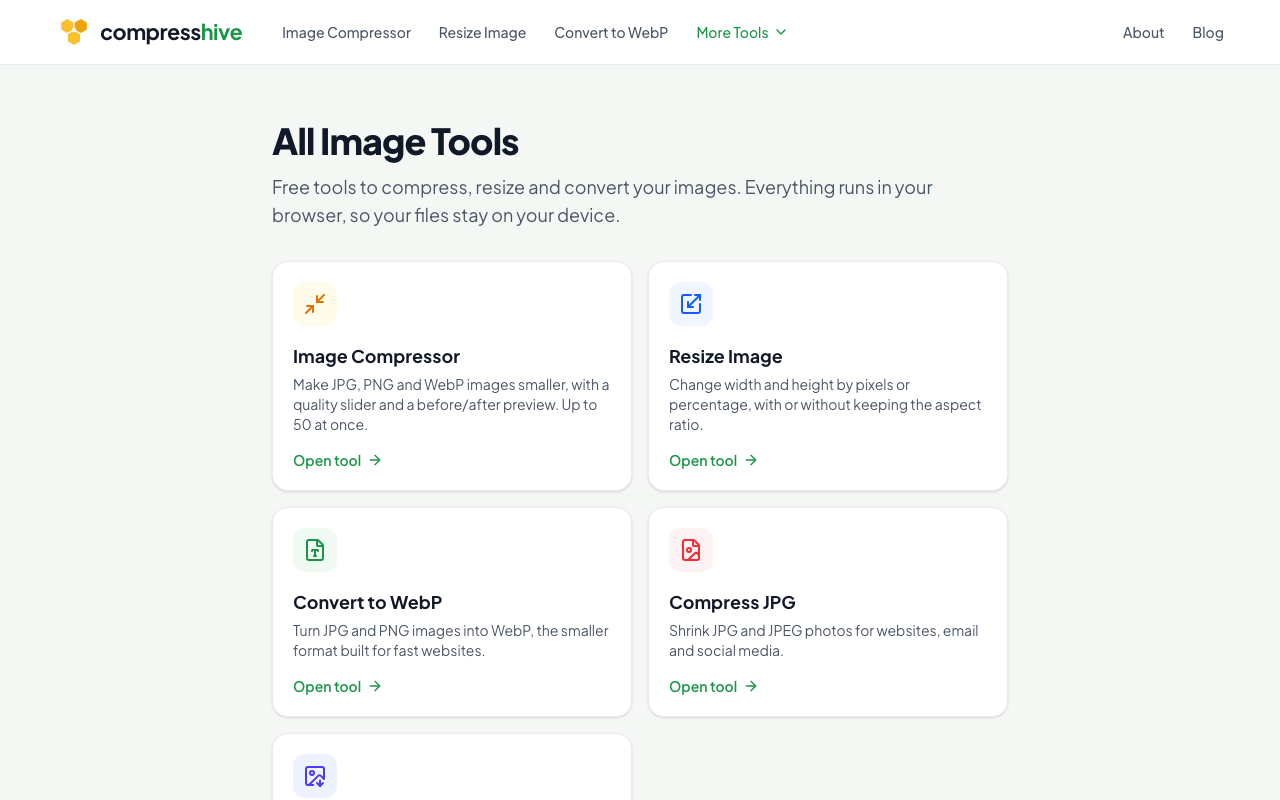
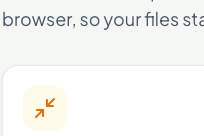
100%: lossless71 KB-15% 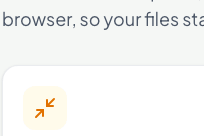
70%: 256 colors (default)38 KB-55% 
20%: 64 colors32 KB-62%
What this shows: Screenshots use few colors, so 256 and even 64 colors look the same as the original, at less than half the size. The lossless version keeps every pixel and still saved 15%.
Example: a photo saved as PNG
The park photo resized to 1600 × 1200 and saved as a lossless PNG, which is how photos often end up when they are exported or pasted from another app.
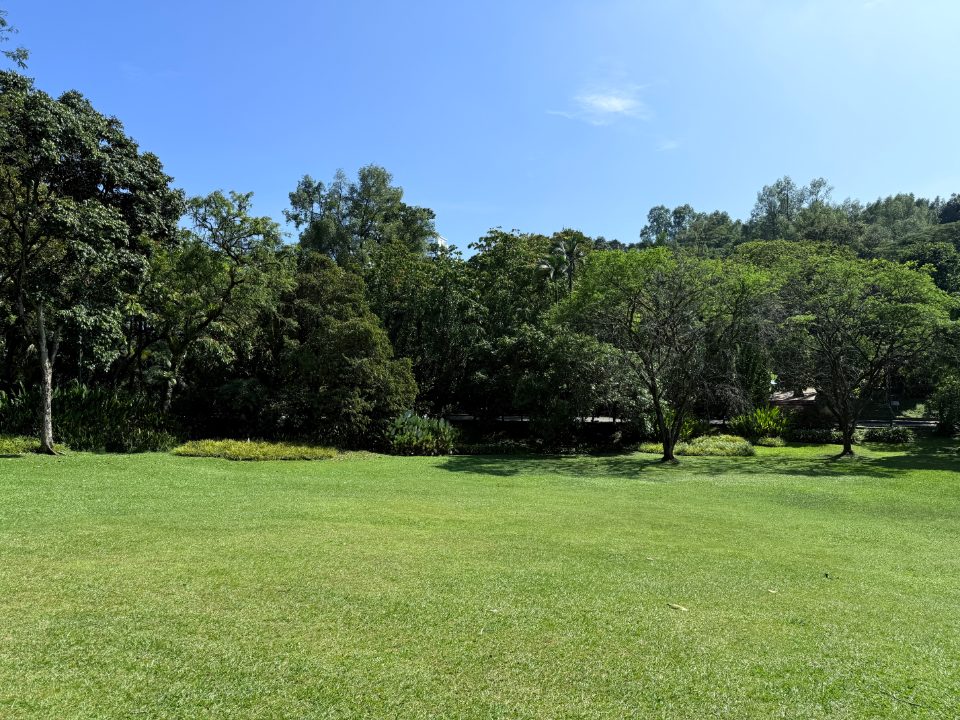
Original: 4.5 MB
Photo, PNG · 1600 × 1200

Original PNG4.5 MB 
70%: 256 colors (default)1.1 MB-76% 
20%: 64 colors790 KB-83% 
Saved as JPG, 70%432 KB-91%
What this shows: Fewer colors shrink a photo PNG a lot, but the sky breaks into visible bands. Saved as a JPG instead (Image Compressor, Convert to JPG), the same photo is smaller still and the sky stays smooth.
Lossless or Fewer Colors?
PNG can be made smaller in two very different ways, and the quality slider chooses between them.
| Quality | What happens | Pixels changed? |
|---|---|---|
| 95–100% | Re-saved with more efficient lossless compression | No, every pixel is kept |
| 50–94% | Reduced to a palette of 256 colors | Yes, similar colors are merged |
| 25–49% | Reduced to 128 colors | Yes |
| Below 25% | Reduced to 64 colors | Yes, most visible |
Lossless saves less, and some PNGs that are already well optimized won't get any smaller. Reducing colors usually saves far more.
How it affects different images
- Logos, icons and flat illustrations often use only a few colors, so 256 colors usually looks identical.
- Screenshots of apps and websites usually look the same, but colorful images, photos or soft shadows inside them can show banding.
- Gradients, shadows and photos are the most likely to show visible steps. Use 95% for lossless, or save photos as JPG or WebP.
- Transparency is kept at every setting. At lower settings, the shades of soft, semi-transparent edges are simplified along with the colors.
Not sure if PNG is the right format? See JPG vs PNG vs WebP.
Frequently Asked Questions
How does PNG compression work?
At 95% quality and above, PNGs are re-saved losslessly, so every pixel is kept. Below that, the image is reduced to 256 or fewer colors, which is much smaller but no longer lossless. On screenshots, logos and illustrations the difference is often hard to see, while gradients and photos may show visible banding.
Will my transparent background be kept?
Yes. Transparency is preserved in every compressed PNG.
What does the quality slider do for PNG?
95% and above keeps every color (lossless). From 50% the image is reduced to 256 colors, and lower settings use 128 or 64 colors for even smaller files.
My PNG is a photo. Is there a better option?
Photos are usually much smaller as JPG or WebP. Use the Convert to WebP tool, or turn off "Keep original format" on the Image Compressor.